
For years, I was on edge, anxious that my PC would crash at the most inconvenient times—right in the middle of a ranked match, while working on an important document, or just before a big deadline.
Sometimes it was a blue screen, sometimes a hard freeze, and sometimes a random reboot with no explanation. It felt unpredictable and completely out of my control.
That changed when I started using Driver Booster regularly and realised most of those “random” crashes weren’t random at all, they were driver problems waiting to be fixed by a proper driver updater.
How Crashes and Freezes Were Quietly Building Up
Before I let Driver Booster handle things, my system had a lot of warning signs:
- Occasional blue screens during heavy tasks or gaming.
- Freezes when I plugged in new hardware or USB devices.
- Games closing themselves without errors.
- Audio glitches and network dropouts that often happened right before a crash.
I kept blaming Windows updates, my hardware, or “bad luck,” but I eventually learned that outdated, missing, or faulty drivers can directly cause instability, conflicts, and system errors. When the wrong driver is talking to your hardware, crashes and freezes become much more likely.
Driver Booster is built specifically to fix that root cause. It detects outdated or broken drivers across my PC. It updates them from a large, verified database and adds safety features like backups and restore points so that updating doesn’t pose a risk.
What Driver Booster Does To Make My PC Stable
Here’s why I trust Driver Booster as my main stability tool now:
- It scans my entire system for outdated, missing, and incorrect drivers. It also scans graphics, audio, network, USB, chipset, printer, mouse, keyboard, and scanner drivers.
- It updates them from a database of more than 18,000,000 verified drivers, all sourced from official vendor sites or Windows and checked with WHQL certification plus IObit’s review process.
Its toolkit includes one‑click fixes for common issues like Fix No Sound, Fix Network Failure, Fix Bad Resolution and Fix Device Error. This often eliminates the problems that lead to crashes in the first place.
Once those drivers are cleaned up and kept current, my PC simply crashes far less even under heavy workloads or long gaming sessions.
How I Use Driver Booster To Prevent Crashes?
If you want to use Driver Booster the way I do, here are the exact steps I follow to turn instability into something manageable.
Step 1: Download and Install Driver Booster
I open my browser and go to the official page at iobit.com, then click Free Download for Driver Booster.
After installation, I launch Driver Booster from the desktop or Start menu and allow it to run with the necessary permissions.
Step 2: Run a Full Driver Scan
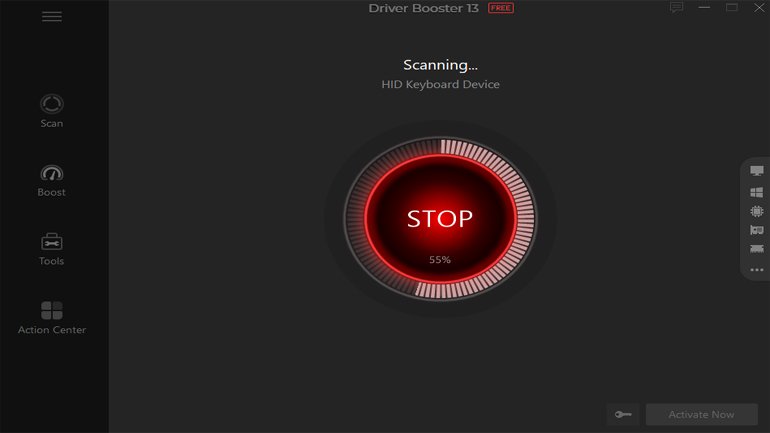
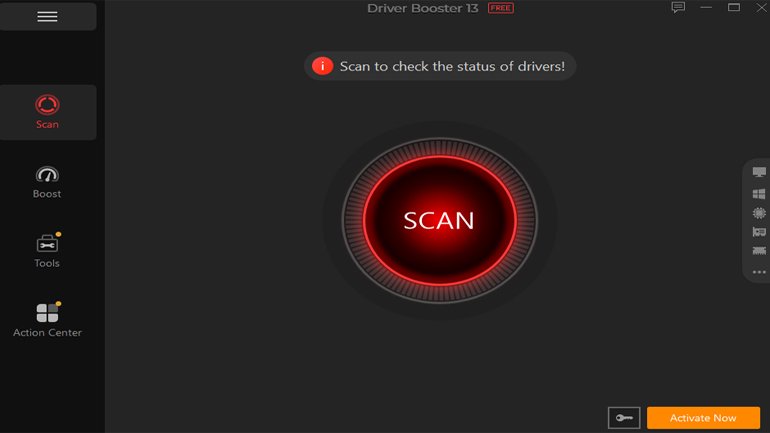
On the main screen, I click the big SCAN button to let Driver Booster analyse my hardware and game components.
The optimised scan engine works up to 20% faster than older versions, so the scan finishes in a short time, even with lots of devices attached.
When the scan completes, I see a list of drivers grouped by priority: outdated, missing, or incorrect drivers that could affect stability and performance.
This first list is usually where I discover just how many critical drivers haven’t been updated in years.
Step 3: Update Outdated Drivers First
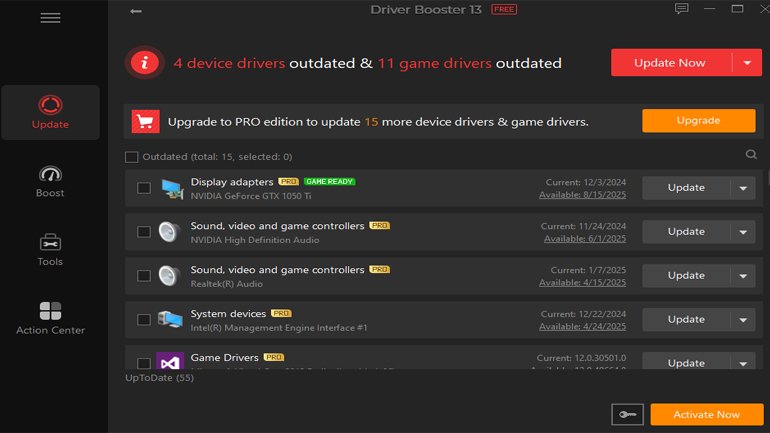
I stick to the key drivers—graphics, audio, network, chipset, and storage—since they cause most crashes. Hit “Update Now” in Driver Booster, and it pulls verified versions. It backs up current drivers and creates a restore point automatically, just in case. The installer’s faster now, and most updates go through cleanly.
Step 4: Use the Tools To Fix Crash‑Prone Issues
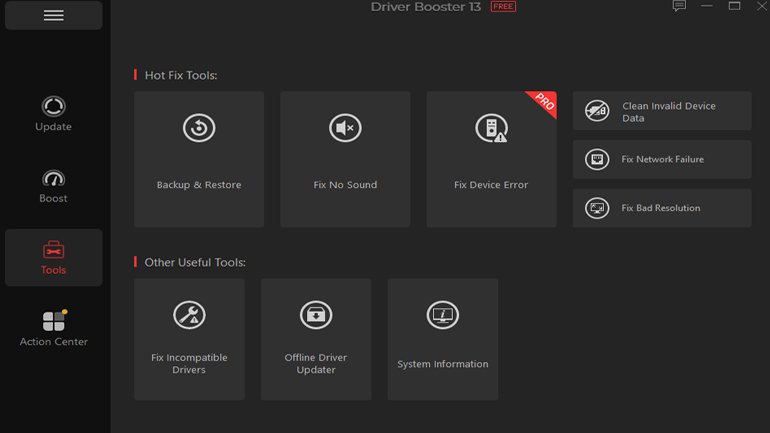
Instead of letting small problems snowball into crashes, I go to the Tools section and use the targeted utilities;
- Fix No Sound: If my audio cuts out (which used to happen before a crash), I run this tool to repair sound drivers and related components.
- Fix Network Failure: If my connection is unstable and causing timeouts, I use this to stabilise the network driver and adapter.
- Fix Bad Resolution: When my display behaves strangely such as wrong resolution, flickering or scaling issues, I run this to fix display and GPU driver problems.
- Fix Device Error: If a device shows a warning icon or stops working, I run this to correct driver‑related errors that could lead to crashes later.
Each tool ends with a simple Fix button, which is where the one-click feeling comes in. These are the issues that used to drive me into long troubleshooting sessions; now they’re handled in minutes.
Step 5: Configure Automatic Protection
To ensure crashes do not return, I make Driver Booster a standard part of my routine, i did these steps:
- In Settings, I set up routine scans (weekly works best for me) and activate scanning at Windows startup to check new devices and updates right away.
- I enable Auto‑update drivers during system idle, which tells Driver Booster to update drivers only when I’m not actively using the machine- no more interruptions while I’m working or gaming.
Step 6: Use Game Boost When I Push My System Hard
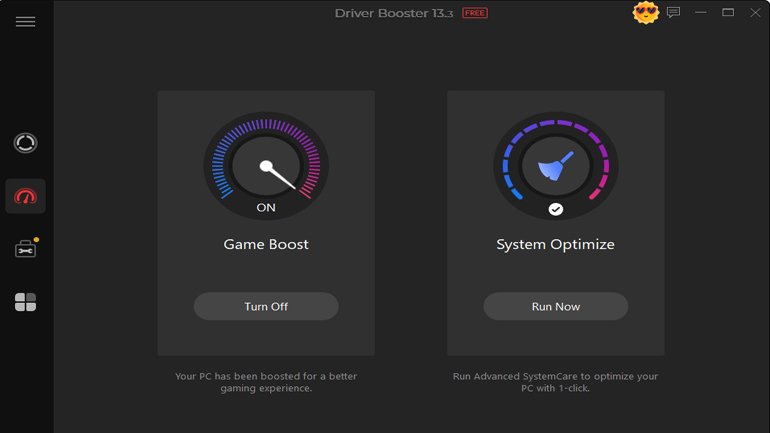
Crashes often happened when I was playing demanding games, so I also use Driver Booster’s gaming features:
Before a long session, I update all game‑related drivers and components—GPU drivers, DirectX libraries, and other gaming frameworks.
I turn on Game Boost, which temporarily shuts down non‑essential background processes and services to free CPU, RAM, and disk resources for my game.
With cleaner drivers and Game Boost active, my system handles high loads more gracefully, and the crashes that used to haunt my gaming sessions virtually disappear.
Why I Don’t Panic When Something Feels Off Anymore
These days, when my PC feels off—maybe a bit laggy or a device behaves strangely – I don’t immediately fear a crash. Instead, I:
- Run a quick scan in Driver Booster to see what’s outdated or broken.
- Let the driver updater install safe, verified versions from its huge database.
- Use the toolkit for targeted fixes if sound, network, display or devices act up.
Most of the time, that’s all it takes. The combination of proactive updates, one‑click repair tools, backups and scheduled maintenance has turned randomness into something predictable and fixable.
So when I say I no longer fear random crashes or freezes, it’s because I know I have a reliable driver updater—and Driver Booster specifically—quietly standing between my hardware and chaos, constantly watching, updating and repairing, one click at a time.
Be the first to comment on "How I Stopped Dreading Crashes and Freezes With Driver Booster"