
Want to record gameplay on PC but don’t know where to start? You’re not alone. Most beginners feel stuck choosing the right tool. The good news is, you don’t need to be a tech expert. With the right screen recording software, you can capture clean, high-quality gameplay in just a few minutes. This guide shows you exactly how to do it, step by step.
Why Gamers Record Their Gameplay on PC
More gamers are hitting record every day. Here’s why:
- Share highlights on YouTube, TikTok, or Instagram
- Review mistakes and level up your skills
- Build a gaming channel from scratch
- Save epic moments before they disappear
Whether you play Minecraft, PUBG, or Roblox, recording PC gameplay puts you in full control of your content.
What to Prepare Before You Start
Before you hit record, a few things matter. Make sure your PC runs Windows 7, 8, 10, or 11. Check that your GPU drivers are up to date. Old drivers cause lag and black screen issues during recording.
Also close background apps before your session. This frees up CPU power and keeps your frame rate stable. A smooth game always records better.
About iTop Screen Recorder: A Dedicated Screen Recorder for PC
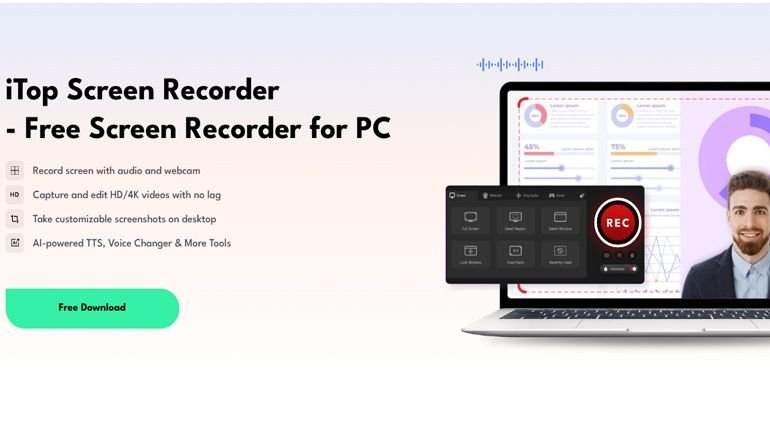
iTop Screen Recorder is a free screen recorder for PC by iTop Inc. It packs recording, editing, screenshots, and AI tools into one app.
I tried it recently. Setup took under two minutes. Game Mode found my game automatically. I was recording in under five minutes.
Key features for gameplay recording:
- Game Mode with AMD and Intel GPU hardware acceleration
- Records up to 4K at 120fps with no frame drops
- Captures system audio, mic, and webcam simultaneously
- Built-in Quick Editor and Advanced Editor
- AI Text to Speech supporting 50+ languages
- AI Remove BG to replace webcam background in one click
- Video Compressor reduces file size without quality loss
- Exports to MP4, AVI, MKV, MOV, WEBM, GIF, and more
It also includes a full iTop Screenshot tool and a powerful Video Editor so you never need to switch apps.
Pros of iTop Screen Recorder
- Free to download with no time limit on recordings
- Game Mode reduces lag even at 60fps and above
- Records webcam, mic, and screen all at once
- Built-in AI tools save time on editing
- Supports multi-track editing for advanced users
- Compatible with Windows 7 through Windows 11
Cons of iTop Screen Recorder
- Free version adds a watermark to exported videos
- Some AI tools and 4K editing need a Pro upgrade
- Only available for Windows (no Mac support yet)
But for beginners, the free version handles everything you need to get started.
How to Record Gameplay on PC: Step-by-Step
These four steps take you from zero to your first saved clip. Here is the full process in order.
Step 1: Download and Install
Visit iTop Screen Recorder and click Free Download. Install it like any normal Windows app and open it.
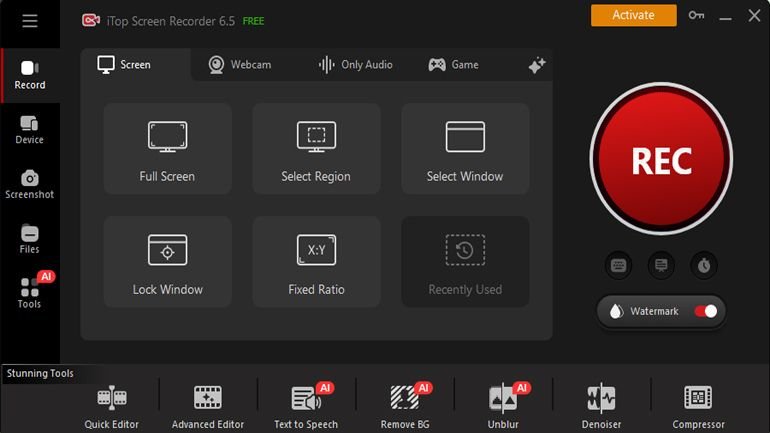
Step 2: Configure Your Settings
In the top right corner, click Settings. You can set quality, FPS, and Format. For YouTube, I am using 1080p at 60 fps. Press your microphone and speaker on to enable audio.
Step 3: Activate Game Mode and Hit Record
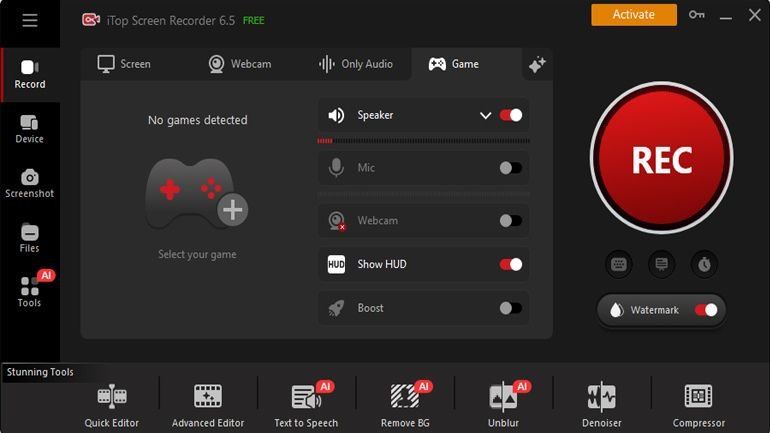
Click the Game tab. iTop automatically detects your open game. To start, press REC or hit F9. A floating toolbar allows you to stop, pause, or screen grab at any time.
Step 4: Stop, Edit, and Share
Press F9 to stop. Look into the Files tab for your clip. Trim out, add subtitles, or compress using the Video Editor. Then share to YouTube or locally store it.
Quick Tips for Better Recordings
- Use hotkeys: F9 record, F10 pause, F11 screenshot
- Use the Denoiser to remove background mic noise
- Use Schedule Recording so you never miss a session start
Final Thoughts
Recording gameplay on PC is simpler than most beginners think. With iTop Screen Recorder, you get a free tool that handles recording, editing, and AI all in one place. Yes, the free version has a watermark.
But the speed, quality, and ease of use make it one of the best starting points for new gamers. Download it, try Game Mode, and record your very first clip today. You may be surprised by the results.
Be the first to comment on "How to Record Gameplay on PC with iTop Screen Recorder: A Beginner’s Guide"